 ChatGPT,
  Claude,
  Gemini,
  Grok — all four for
 Bluehost Account Manager: Professional Email Menu
The Professional Email tab offers all the essential tools customers need to manage their email system—whether it's logging into webmail, adding or removing accounts, setting up email forwarding, enabling catch-all addresses, connecting a custom domain, or checking email reputation.
Navigating Email Tab: Professional Email Menu
- Log in to your Bluehost Portal.
- From the left-hand navigation menu, click on the Email tab.
- Optional: In Professional Email, if multiple plans are listed, click Manage for the plan you want to use.
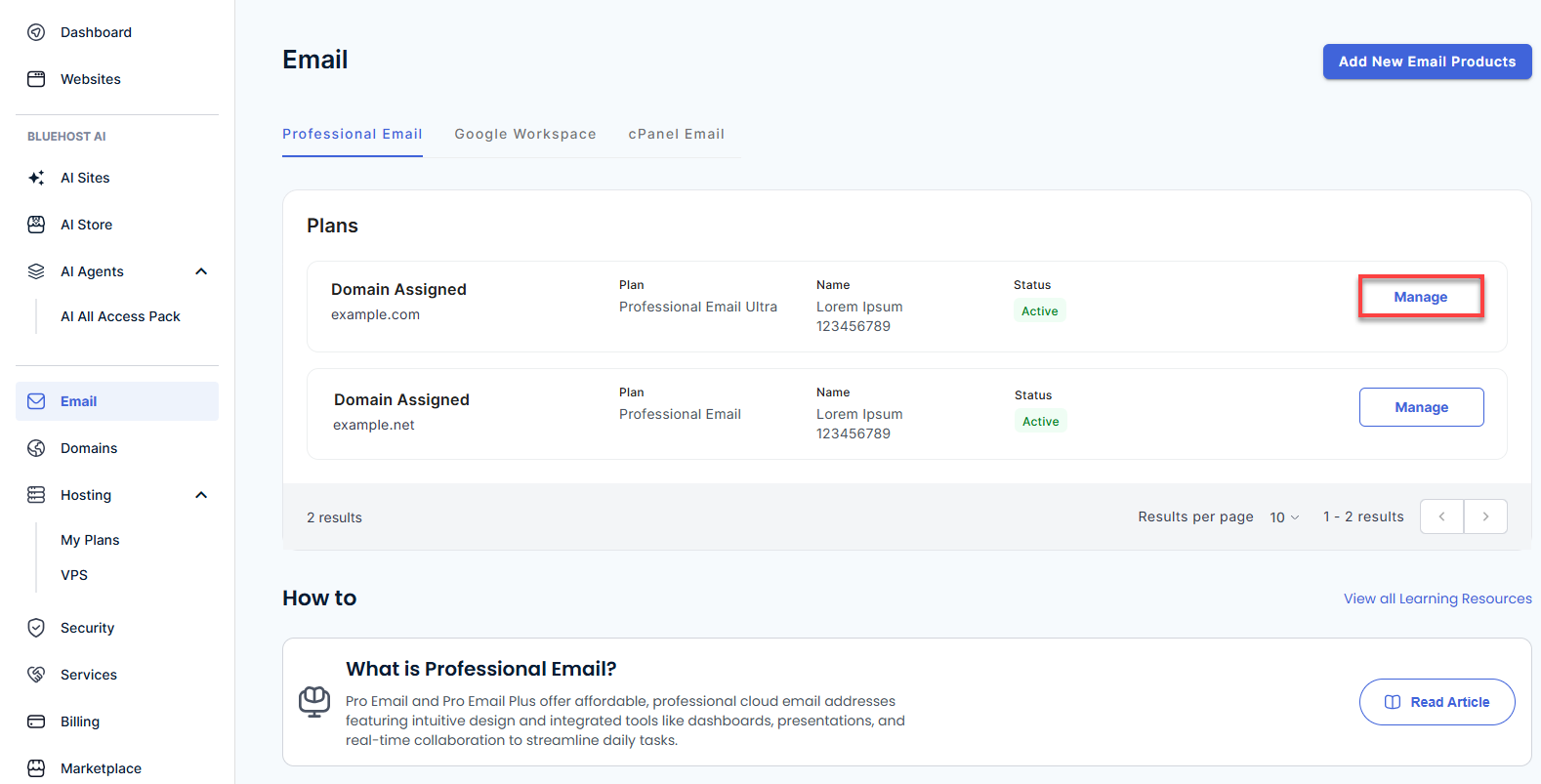
- You’ll be automatically redirected to the Email Management page, where you can manage your email settings and subscriptions.
Professional Email features
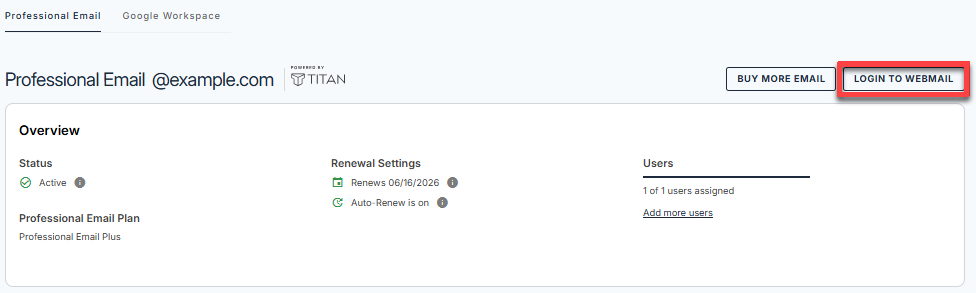
Log in to Webmail
You can securely access your email by selecting the Login to Webmail button, which initiates a direct authentication flow to the webmail interface.
Email Plan Overview
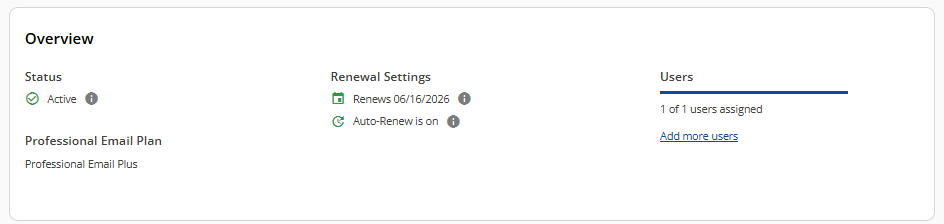
This section will show the name of your Professional Email Plan, Renewal Settings, and the Count of active user accounts.
Professional Email Feature Cards
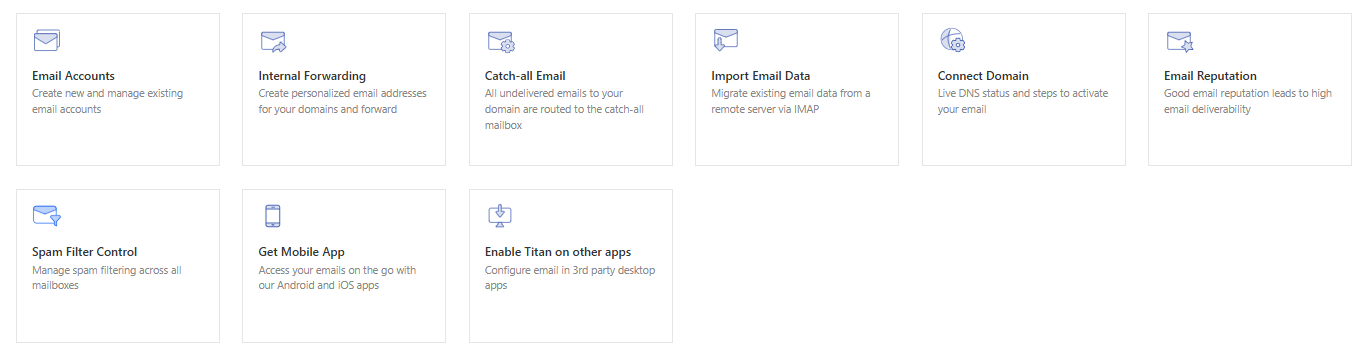
This section serves as a centralized hub for managing your email account. From adding new email addresses and configuring forwarding rules to setting up spam filtering, all essential tools are conveniently accessible in one place.
Feature Cards Overview:
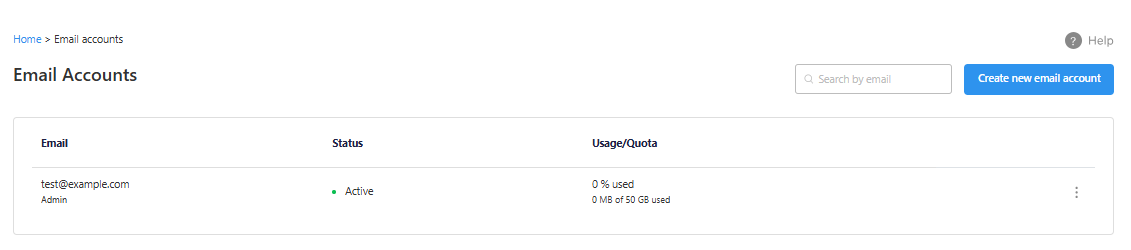
Email Accounts
This section displays all active email addresses associated with your account.
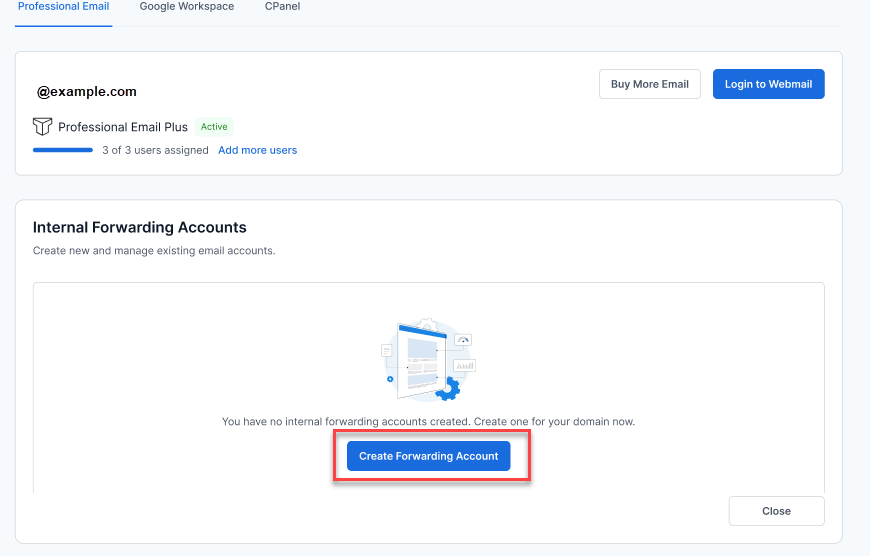
Internal Forwarding Accounts
The Internal forwarding accounts are email addresses that don’t have their own inbox but automatically redirect incoming messages to another email address within the same domain or organization.
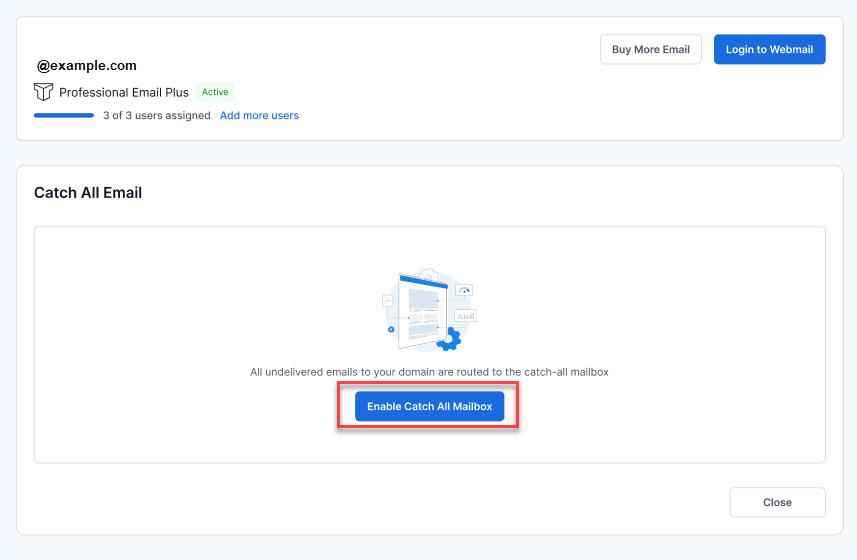
Catch All Email
A catch-all email is like a safety net for your domain’s email system. It’s an email address that receives all messages sent to invalid or non-existent email addresses under your domain. Let’s say your domain is example.com, and someone sends an email to [email protected]—but that address doesn’t exist. Instead of bouncing back, the message gets delivered to your catch-all address (e.g., [email protected]).
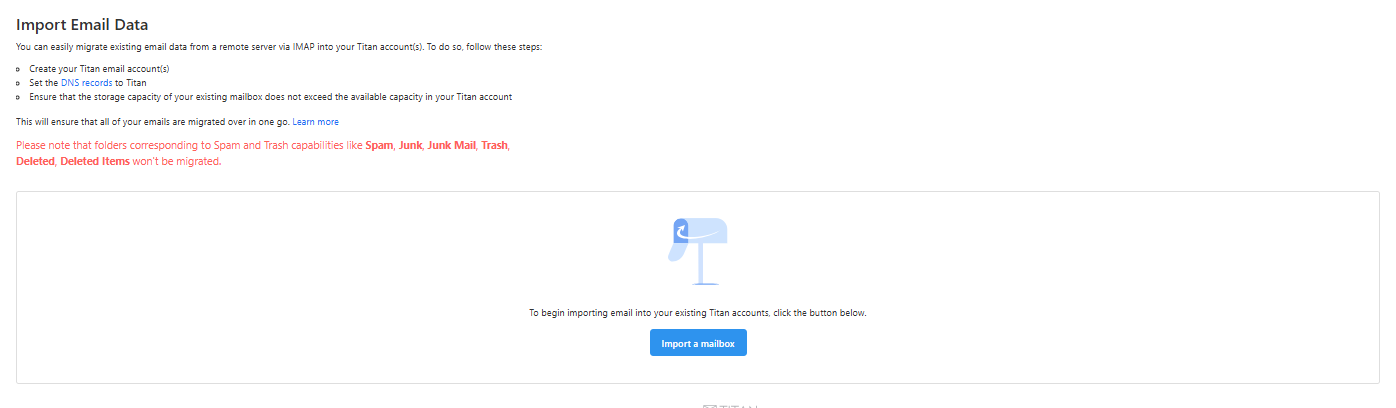
Import Email Data
You can easily migrate existing email data from a remote server into your Professional Email using the IMAP protocol.
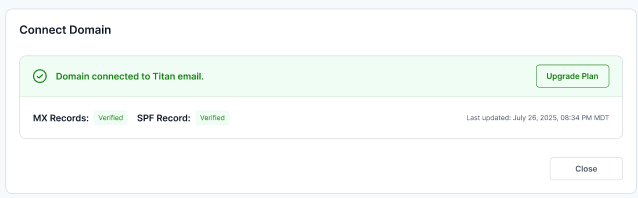
Connect Domain
You can view the domain that is currently linked to your Professional Mail.
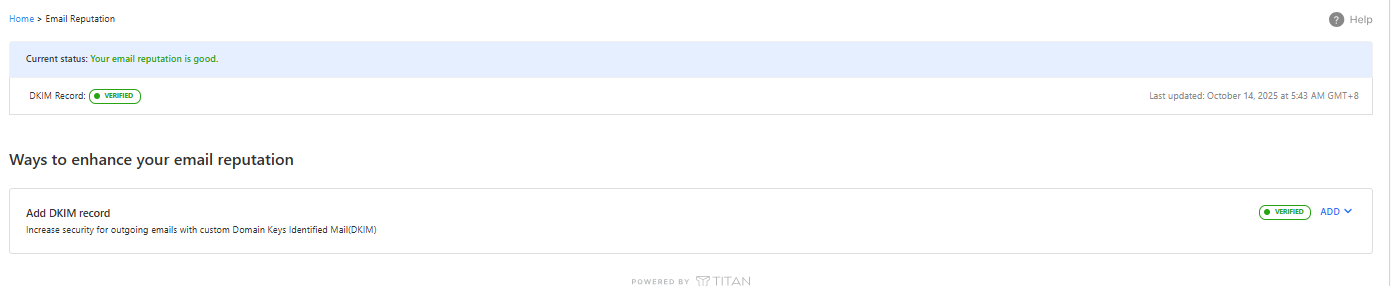
Email Reputation
Refers to how trustworthy and credible your email domain appears to Internet Service Providers (ISPs) and recipient mail servers. It plays a critical role in determining whether your emails land in the inbox, get flagged as spam, or are rejected altogether.
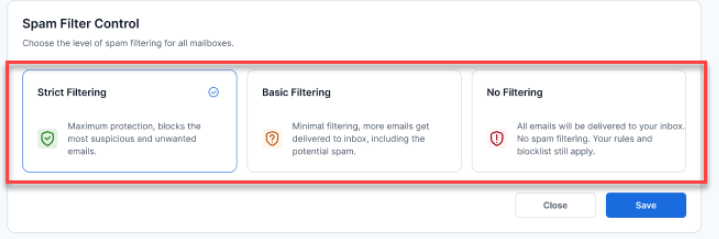
Spam Filter Control
Professional Email allows you to configure spam filtering settings that apply across all existing mailboxes within your domain. This ensures consistent protection and delivery behavior for incoming emails.
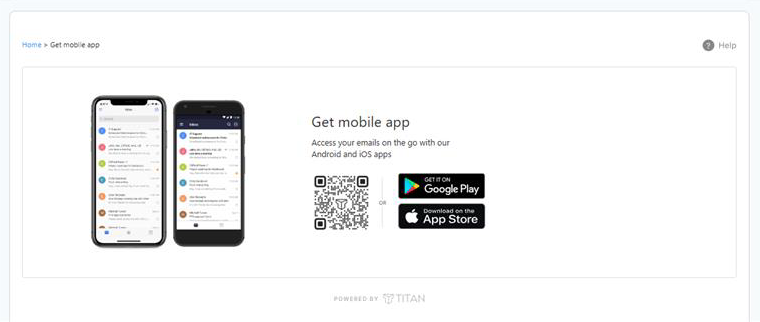
Get Mobile App
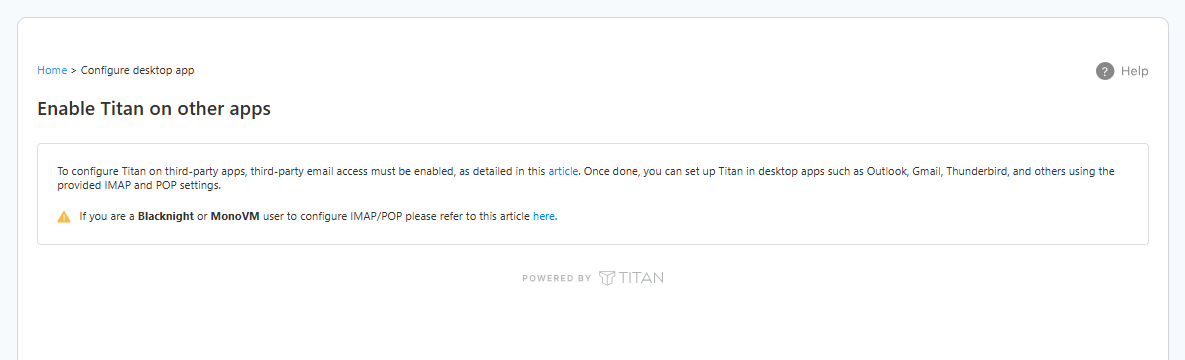
Enable Titan on Other Apps
Bring your Professional Email Anywhere You Work. Seamlessly connect your Titan email to your favorite third‑party desktop apps and stay productive without limits.
Summary
The Professional Email tab makes it easy to manage your email setup—from logging into webmail to customizing spam filters and forwarding rules. With all the tools in one place, keeping your email system organized and secure is quick and hassle-free.
If you need further assistance, Bluehost Chat Support is available 24 hours a day, 7days a week while Bluehost Phone Support is available 7 days a week from 7 am-12 midnight EST.
- Chat Support - While on our website, you should see a CHAT bubble in the bottom right-hand corner of the page. Click anywhere on the bubble to begin a chat session.
- Phone Support -
- US: 888-401-4678
- International: +1 801-765-9400
You may also refer to our Knowledge Base articles to help answer common questions and guide you through various setup, configuration, and troubleshooting steps.